HTML Forms 101: Building User-Friendly Forms for Your Website

📝 How to Create Forms in HTML (Beginner-Friendly Guide)
Have you ever typed your username and password on a website and clicked Login?
That’s an HTML form at work! 😄
Let’s learn how forms work in the simplest way possible.
👋 Introduction
Hi everyone 👋
This article is written from a beginner’s point of view, just like my first Hashnode blog.
Today we’ll learn:
How to create forms in HTML
Different input types
GET vs POST methods
Important attributes for better user experience
❓ Ready to build your first form? Let’s go! 🚀
📌 What You’ll Learn
By the end of this article, you’ll understand:
✅ What HTML forms are
✅ Common input types (text, password, email)
✅ GET vs POST (with real examples)
✅ Important attributes like
required&maxlength✅ Beginner mistakes to avoid 🚫
🧩 What Is an HTML Form?

An HTML form is used to collect user data 📥
Examples:
Login form 🔐
Registration form 🧾
Search bar 🔍
Contact form 📩
Basic structure:
<form>
  <!-- inputs go here -->
</form>
💡 Think of a form like a question paper, and inputs are the answers.
🛠️ Simple Login Form Example
HTML
<form>
  <label>Username:</label>
  <input type="text" />

  <label>Password:</label>
  <input type="password" />

  <button>Login</button>
</form>
📝 Explanation:
<form>→ starts the form<input>→ takes user input<button>→ submits the form
❓ Looks simple, right? 😊
⌨️ HTML Input Types Explained
HTML provides different input types for different data 👇
| Input Type | Use |
text | Name, username |
password | Hides sensitive text |
email | Email address |
number | Age, quantity |
checkbox | Multiple options |
radio | Single option |
Example:
<input type="email" placeholder="Enter your email" />
✨ Browsers automatically validate email format!
🔁 GET vs POST (Very Important!)
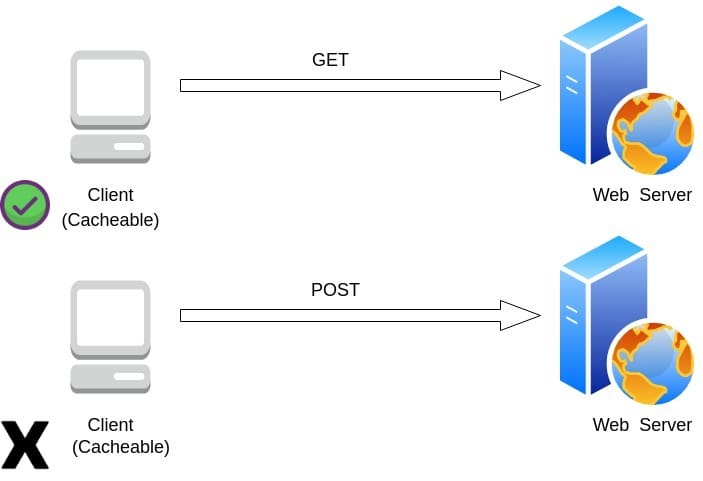
🔍 GET Method
Sends data in URL
Used for search
Data is visible 👀
Example:
<form method="GET">
🧠 Best for:
Search bars
Filters
❌ Not safe for passwords
🔐 POST Method
Sends data securely
Data not shown in URL
Used for sensitive info
Example:
<form method="POST">
🧠 Best for:
Login forms
Registration forms
Payment data
❓ Would you send a password in the URL?
👉 No! Use POST 👍
🧠 Important HTML Form Attributes
✅ required
<input type="text" required />
➡️ Prevents empty submission
✅ maxlength
<input type="text" maxlength="10" />
➡️ Limits input length
✅ placeholder
<input placeholder="Enter name" />
➡️ Helps users understand what to type
💡 These improve user experience + validation 🎯
🚫 Common Beginner Mistakes
❌ Forgetting name attribute
❌ Using GET for passwords
❌ Not using required
❌ No labels (bad accessibility)
👉 Tip: Always think like a user, not just a developer 🙂
⚖️ Pros & Cons
✅ Pros
Easy to create
Built-in validation
Works in all browsers
❌ Cons
Limited without JavaScript
Styling needs CSS
💰 Price & Value for Money
Cost: Free 💯
Tools: Browser + Code editor
Value: ⭐⭐⭐⭐⭐
Forms are essential for real-world websites 🌍
🧪 Try This Mini Task
👉 Create a registration form
👉 Add email, password, required
👉 Try submitting without filling fields
❓ What happens? 😄
🧠 Key Takeaways
Forms collect user data
Use correct input types
GET = visible data
POST = secure data
Attributes improve UX
🙌 Final Thoughts
HTML forms are simple but powerful 💪
Once you master them, building real apps becomes easier!
❓ Should I write next about form validation with JavaScript or accessibility in forms?
Thanks for reading ❤️
Happy learning & keep building! 🚀


